June 7, 2026
·
Updated October 27, 2026
·
14 min read
How to Embed Testimonials on Your Website (2026 Guide)
A practical guide to embedding testimonials on your website: how script widgets, iframes and API feeds differ, where to paste the code in WordPress, Webflow, Shopify, Framer, Wix, Squarespace and React/Next.js, which layout to pick, how to stop the widget from shifting your page, and when Google will and won't show review stars.


To embed testimonials on your website, you paste two pieces of code from your testimonial tool: a loader script and an empty container that marks where the testimonials appear. On most platforms that goes into a custom HTML or code block. On sandboxed elements such as Wix's Embed HTML, the code runs inside an iframe instead, and fully custom sites can render testimonials from an API.
This guide walks through each method, gives exact steps for seven platforms, shows how to keep the widget from pushing your content around, and explains the Google rule that trips up many sites: testimonials about your own business don't earn review stars, whichever widget displays them.
4 Ways to Embed Testimonials, Compared
There are four ways to get testimonials onto a page. They differ in who renders the HTML, whether new testimonials appear without you editing the page, and whether the text ends up as part of your page or someone else’s. Whichever tool you use, the embed code it hands you will be one of these.
| Method | How it works | Updates on its own | Styling control | Text is part of your page | Best for |
|---|---|---|---|---|---|
| Hand-coded HTML | You write the quotes into the page or a builder’s testimonial block | No | Full | Yes | A few quotes that rarely change |
| Script widget | A loader script fetches testimonials and renders them into a container on your page | Yes | Dashboard settings, often custom CSS | Yes, once JavaScript runs | Most sites; walls, grids and carousels |
| Iframe | Your page frames a small page hosted by the vendor | Yes | Vendor settings only | Usually not; it belongs to the vendor’s URL | Sandboxed builders, single cards |
| API or JSON feed | Your own code fetches testimonials and outputs your own markup | Yes, on rebuild or request | Full | Yes, and it can be server-rendered | Headless and custom-built sites |
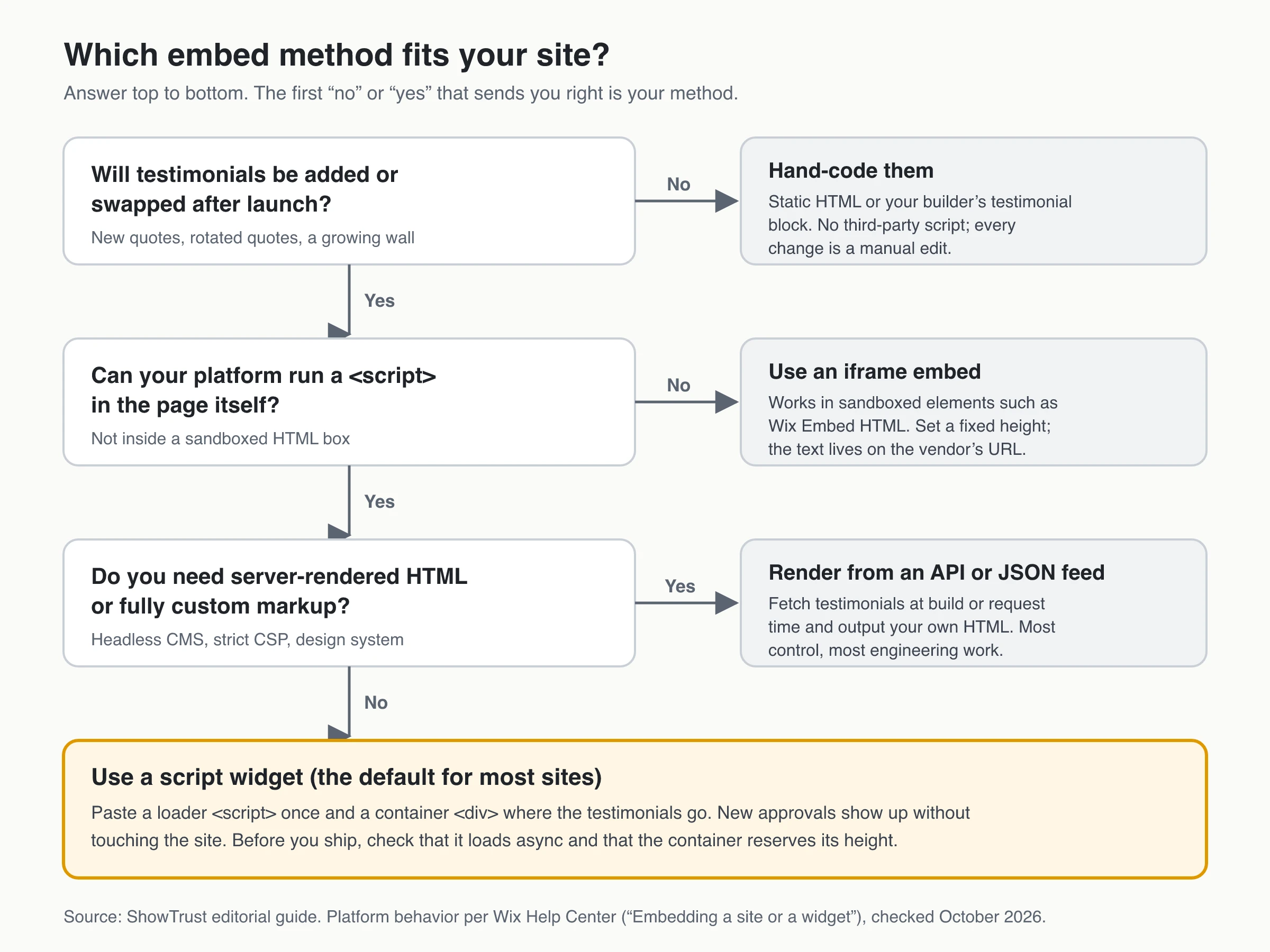
Hosted testimonial tools don’t all use the same method. Senja’s widget renders into a container on your page, while Testimonial.to’s Wall of Love embed is an iframe that a resizer script sizes to its content. If the snippet your tool gives you contains an <iframe> tag, it’s an iframe embed. In ShowTrust, the wall of love is a script widget and the single-testimonial embed is an iframe.
Script Widget vs Iframe: What Actually Changes
Once loaded, a script widget and an iframe look the same to a visitor. The differences show up in styling, page height, search and what your platform will accept.
- Where the HTML lives. A script widget writes the testimonial markup into your page. An iframe displays a separate document from the vendor’s domain inside a box on your page.
- Styling. Your stylesheet can’t reach inside an iframe. Script widgets often render inside a shadow root so your CSS and theirs don’t clash, with an opt-out when you want to style the cards yourself. ShowTrust’s opt-out is
allowCssOverride: truein the embed config. - Height. A script widget sits in the normal page flow and grows with its content. An iframe is as tall as you make it unless the vendor adds a resizer script, so a wall that outgrows it gets cut off or scrolls inside the frame.
- Search. Google renders JavaScript and, in its words, flattens the shadow DOM and light DOM content when it renders a page. Testimonials a script widget injects can therefore be indexed with your page, provided they appear in the rendered HTML. Text inside an iframe belongs to the framed URL; Google can sometimes index it along with your page, but you can’t count on it.
- Platform rules. Some builders only run code inside a sandbox. Wix states that its HTML and URL embed elements are iframes, and WordPress strips
<script>tags for users who aren’t allowed to post unfiltered HTML.
The rule of thumb: use a script widget wherever your platform lets a script run in the page itself, and fall back to an iframe when it doesn’t, or when you only want one testimonial card next to a CTA.
How to Embed Testimonials With a Snippet
The workflow is the same in every tool that uses a script widget. The example uses ShowTrust’s snippet because it’s the one we can document exactly; with another tool’s code, the steps don’t change.
- Collect and approve testimonials. Widgets show only what you approve. For quotes taken from emails, reviews or social posts, get permission to use the testimonial first.
- Design the widget in the dashboard. Pick the layout, theme and card style there, not in your site’s code. In ShowTrust, saved changes reach every embedded wall within about five minutes without touching the site.
- Copy the two snippets. One loads the widget; the other marks where it renders.
<!-- 1. Loader: once per page, in <head> or just before </body> -->
<script>
  window.SHOWTRUSTTO_WIDGET_CONFIG = { projectId: 'YOUR_PROJECT_ID' };
</script>
<script src="https://app.showtrust.to/showtrustto-widget.js" async></script>

<!-- 2. Container: exactly where the testimonials should appear -->
<div id="showtrustto-widget"></div>
- Paste and publish. Put the container where the testimonials belong and the loader once per page. If the container needs a different ID, most tools let you set it; ShowTrust’s
containerIdoption is covered in the embed options for the wall of love. On ShowTrust’s Free plan the container can include a small credit link; keep it inside the<div>. Load the script only on pages that have a container: ShowTrust’s loader, for one, adds the wall to the end of any page where it can’t find its container. - Check the live page while logged out. Many builders don’t run custom scripts in the editor. Open the published URL in a private window, check it on a phone, and look at the browser console for errors.
For a static site with no build step, the plain HTML install is exactly the snippet above.
How to Add Testimonials on Each Platform
Here’s where the snippet goes on each platform. Menu names are as of October 2026, and builders rename things often; if a label differs, look for “custom code,” “embed” or “HTML.”
WordPress
- In the block editor, add a Custom HTML block (type
/htmlin an empty paragraph), click Edit HTML, paste the loader and the container, then update the page. - WordPress only keeps
<script>and<iframe>tags for users with theunfiltered_htmlcapability. On a standard single site that means Administrators and Editors; on Multisite, only Super Admins. Saved by anyone else, the script is silently stripped, which is the most common reason a WordPress widget “disappears.” - Embedding on several pages? You can add the loader once site-wide (your theme’s custom code setting or a header-and-footer code plugin) and paste only the container on each page, but only if your tool ignores pages with no container. ShowTrust’s doesn’t, so paste both snippets on each page that shows testimonials.
- Don’t install a vendor’s plugin and also paste its snippet. You’ll load the script twice.
Webflow
- Drag a Code Embed element from the Add panel to where the testimonials should appear and paste both snippets. For several pages, put the loader in the page’s custom code before
</body>and keep only the container in the Code Embed. - Code Embed requires a paid Site plan or a Workspace plan. If the element is missing from the Add panel, check your plan first.
- Don’t judge the result on the Designer canvas. Check it in Preview or on your published staging domain.
Shopify
- Go to Online Store → Themes, duplicate your live theme, and click Customize on the copy. Open the template you want (home, product or a page), choose Add section → Custom Liquid, paste both snippets and save.
- Shopify’s free themes, such as Dawn, and most other Online Store 2.0 themes include the Custom Liquid section. If yours doesn’t, you’ll need to add the code to the theme files or ask the theme developer.
- If your testimonial tool has a Shopify app with an app embed or app block, use that instead of pasting code, never both. Our walkthrough on setting up a testimonial wall on Shopify compares the app and no-app routes.
Framer
- Open the Insert menu, search for Embed, drag it onto the canvas, switch it to HTML and paste the loader and the container.
- To keep the loader out of the Embed, add it to that page’s custom code settings and keep only the container in the Embed. Site-wide custom code also works if your tool ignores pages without a container.
- Give the Embed enough height for the layout you picked, then check the published page on mobile. Third-party widgets often don’t render on the canvas.
Wix
- Click Add Elements → Embed Code → Popular Embeds → Embed HTML, then Enter Code, paste the snippet and click Apply. Wix only displays code that uses HTTPS.
- Wix’s HTML element is an iframe, so the widget runs inside a frame that doesn’t resize itself. Set the element’s height to fit your layout, and expect less responsive behavior: Wix itself warns that embedded code won’t be responsive.
- Settings → Custom Code can add a script to the head or body of every page (it needs a published site with a connected domain). That suits floating widgets such as popups or badges, but it can’t place a wall at a specific spot.
Squarespace
- Edit the page, click Add block (or +) and choose Code, leave the mode on HTML, paste both snippets and save.
- JavaScript and iframes in code blocks require a Core, Plus or Advanced plan.
- Custom code may not show while you’re logged in, and it may not render on pages inside an index page or when Ajax loading is on. Check the page in a logged-out window or with Preview in Safe Mode.
React and Next.js
Script widgets expect a normal page load, so in a React app the job is to load the script once and render the container wherever you want the testimonials. In the Next.js App Router, that means next/script in the root layout:
// app/layout.tsx
import Script from 'next/script';

export default function RootLayout({ children }: { children: React.ReactNode }) {
  return (
    <html lang="en">
      <body>
        {children}
        <Script id="showtrust-config" strategy="afterInteractive">
          {`window.SHOWTRUSTTO_WIDGET_CONFIG = { projectId: 'YOUR_PROJECT_ID' };`}
        </Script>
        <Script src="https://app.showtrust.to/showtrustto-widget.js" strategy="afterInteractive" />
      </body>
    </html>
  );
}
Then render <div id="showtrustto-widget" /> in the page that should show the testimonials.
- For a wall far down the page,
strategy="lazyOnload"waits until the browser is idle; the Next.js docs list social media widgets as typical candidates. - Many loaders look for their container once, at page load, and Next.js doesn’t re-run root-layout scripts on client-side navigation. Test the route by navigating to it inside the app, not only by reloading. If it doesn’t render, move the
<Script>tags into that route’s page or use your vendor’s re-initialize call if it has one. - ShowTrust’s loader adds the wall to the end of the page when it finds no container, so if only some routes show testimonials, load the script on those routes rather than in the root layout.
- ShowTrust’s docs have the same steps for the Next.js App Router, the Pages Router, Vite + React and Astro.
Choosing a Layout: Wall of Love, Grid, Carousel or Single Quote
Match the layout to the space on the page and to how many testimonials you have.
| Layout | Where it works | How many testimonials | Watch out for |
|---|---|---|---|
| Wall of love (masonry grid) | A dedicated testimonials page, or below the fold on the home page | Enough to fill several rows | Very long on phones; use a “show more” button |
| Grid | Landing and product pages | A handful, one or two rows | Uneven quote lengths leave gaps |
| Carousel | Narrow bands and hero sections | Several, or it loops on the same few | Shows one quote at a time; auto-rotation needs a pause |
| Scrolling marquee | A social-proof strip under the hero | ShowTrust suggests 10+ for horizontal, 15+ for vertical columns | Moving text is hard to read; it should stop on hover |
| Single quote card | Beside pricing, signup or checkout | One | Pick the quote that answers that page’s main objection |
| Rating badge | Header, pricing table, checkout | Your overall count and average | Badge only; don’t add star markup for your own business |
Anything that moves on its own also has an accessibility cost. WCAG’s Pause, Stop, Hide criterion (2.2.2) expects a way to pause content that moves automatically, so avoid auto-rotating carousels with no controls, especially next to pricing, where visitors read closely.
In ShowTrust, the layout is a dashboard setting behind the same snippet: masonry, horizontal scroll, vertical columns, carousel (one testimonial at a time, rotating every five seconds), polaroid scatter and quote wall, with scrolling layouts pausing on hover. You can compare them on a real page in layouts and styles. One limitation to know: a project has one wall design, so showing a different design on another page means using a second project.
Keep the Widget From Slowing or Shifting Your Page
A testimonial widget is extra JavaScript and content that arrives after the page has drawn. Handled carelessly, it pushes your content down mid-read. These habits keep it out of your Core Web Vitals.
Load it asynchronously. Use async or defer on the loader, or afterInteractive/lazyOnload in Next.js, never a blocking script in <head>.
Reserve the space. Layout shift happens when the widget appears and shoves content below it. Google’s web.dev guidance treats a CLS of 0.1 or less as good and recommends a min-height on containers for late-loading content. Set it to roughly the widget’s rendered height on mobile:
<div id="showtrustto-widget" style="min-height: 520px"></div>
The same guidance notes that content injected near the top of the viewport causes bigger shifts, so if you can’t reserve space, place the widget lower on the page.
Lazy-load walls below the fold. Only fetch the widget when the visitor scrolls near it:
<div id="showtrustto-widget" style="min-height: 520px"></div>
<script>
  const box = document.getElementById('showtrustto-widget');
  new IntersectionObserver((entries, observer) => {
    if (!entries[0].isIntersecting) return;
    observer.disconnect();
    window.SHOWTRUSTTO_WIDGET_CONFIG = { projectId: 'YOUR_PROJECT_ID' };
    const s = document.createElement('script');
    s.src = 'https://app.showtrust.to/showtrustto-widget.js';
    s.async = true;
    document.head.appendChild(s);
  }, { rootMargin: '400px' }).observe(box);
</script>
ShowTrust’s loader renders immediately when added after page load, so this works with it; check your vendor’s loader does the same. If you want the text indexed, confirm with Search Console’s URL Inspection that the quotes still appear in the rendered HTML.
Load one copy per page. A plugin plus a pasted snippet, or the same snippet in a layout and a page, initializes the widget twice.
Keep video click-to-play. Video is the heaviest thing in a wall, so show a poster frame and load the player on click.
Plan for the script not loading. Ad blockers and outages happen. If a page leans on social proof, hand-code one or two key quotes so the argument survives without JavaScript.
Allow the domains in your CSP. If your site sends a Content-Security-Policy header, allow the widget’s script and data domains. For ShowTrust that’s app.showtrust.to (script, under 8 kB per its docs) and api.showtrust.to (testimonial data). If your policy also restricts images or media, check the browser console for blocked avatar or video URLs and allow those hosts too.
Testimonials, SEO and Review Stars
Embedded testimonials can help search in a modest way, and they can earn review stars only in narrow cases. Much of the confusion comes from mixing up the two.
Can Google index testimonials in a widget?
Usually, yes. Google runs JavaScript with an evergreen version of Chromium, and content that ends up in the rendered HTML can be indexed, including content inside a shadow root. Two caveats: rendering can happen some time after crawling, and text inside an iframe belongs to the framed URL, so Google may or may not index it as part of your page.
To check, open Search Console’s URL Inspection tool, test the live URL and search the rendered HTML for a phrase from one of your testimonials. If it’s missing, or you want certainty for a few quotes that carry the page, put those in the HTML yourself.
Don’t expect a ranking jump from a testimonial wall; what it adds is customer language that matches how buyers describe the problem.
When can testimonials earn review stars?
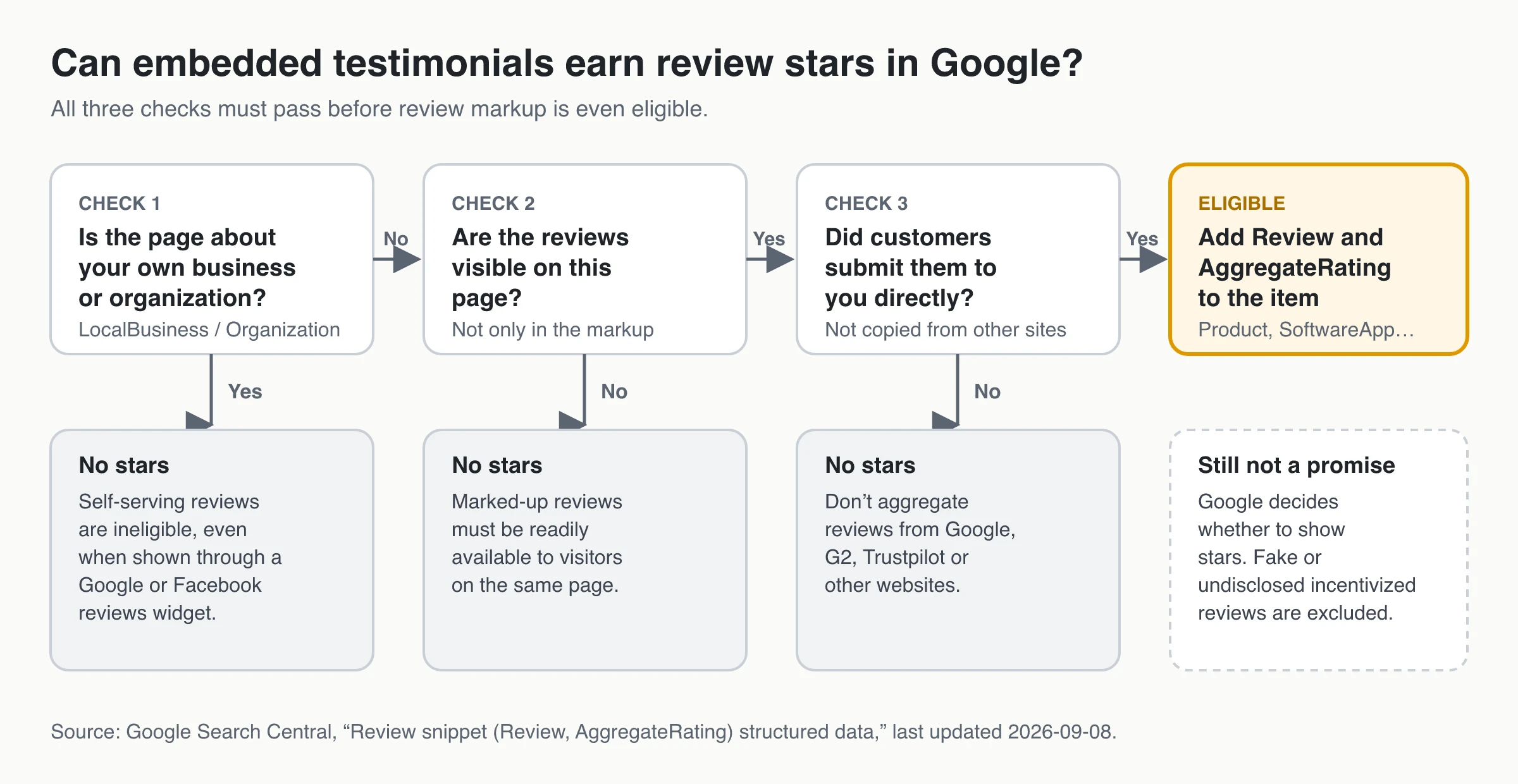
This is where testimonial pages often go wrong. Google’s review snippet guidelines (last updated September 8, 2026) set out who is eligible for stars:
- No stars for reviews about yourself. If the business being reviewed controls the reviews about itself, its pages using
LocalBusinessor anyOrganizationmarkup aren’t eligible for star snippets. Google’s example explicitly includes reviews shown through an embedded third-party widget, such as a Google Business or Facebook reviews widget. A wall of testimonials about your agency, clinic or company won’t produce stars. - Reviews must be about a specific item. Eligible types include
Product,SoftwareApplication,Course,Book,RecipeandEvent, not a category or a list of items. - The reviews must be on the page. Marked-up reviews have to be readily available to visitors on that URL, not only in the markup.
- Don’t import other sites’ reviews. Google says not to aggregate reviews or ratings from other websites, so G2, Google or Trustpilot reviews pulled into your page don’t belong in your markup.
- No fake or undisclosed incentivized reviews, and if you mark up several individual reviews, include an
AggregateRatingas well.
On an eligible product page, the markup looks like this (the values are placeholders and must match the reviews visitors can see):
<script type="application/ld+json">
{
  "@context": "https://schema.org",
  "@type": "Product",
  "name": "Example Desk Lamp",
  "aggregateRating": { "@type": "AggregateRating", "ratingValue": "4.7", "reviewCount": "38" },
  "review": [{
    "@type": "Review",
    "author": { "@type": "Person", "name": "Dana R." },
    "reviewRating": { "@type": "Rating", "ratingValue": "5" },
    "reviewBody": "Bright enough for drafting, and the clamp hasn't loosened."
  }]
}
</script>
ShowTrust’s widget displays testimonials but doesn’t add review markup, so on pages that qualify you add it yourself; the free review schema generator builds the JSON-LD. If you’re specifically putting Google reviews on your site, our guide to displaying Google reviews on your website covers the methods and the platform’s rules.
Before You Publish: A 7-Point Embed Check
- The loader appears once per page and loads with
async,deferor a non-blocking framework strategy. - The container has a
min-height, and nothing below it jumps when the testimonials appear. - The widget renders on the published page in a logged-out private window, on desktop and on a phone.
- The code was saved by someone allowed to save scripts (WordPress) on a plan that allows custom code (Webflow, Squarespace).
- Anything that moves on its own pauses on hover and can be stopped.
- There’s no review markup on pages about your own business, and on product pages the markup matches the visible reviews.
- You have permission for every quote, name and photo on the wall.
If the widget still won’t appear, our guide to a social proof widget not showing walks through the usual causes.
Frequently Asked Questions
- What is the easiest way to add testimonials to a website?
- Paste your testimonial tool's embed snippet, a loader script plus a container div, into your builder's custom HTML or code block. If you have only a few quotes that won't change, writing them into the page as plain HTML is just as easy and adds no third-party script.
- Should I use an iframe or a script to embed testimonials?
- Use a script widget when your platform can run a script in the page: it resizes with its content, can match your styles, and its text can be indexed as part of your page. Use an iframe when the platform only allows sandboxed code, as with Wix's HTML element, or when you're embedding a single testimonial card.
- Will a testimonial widget slow down my website?
- It shouldn't if it loads asynchronously, appears once per page and has its space reserved with a min-height. For walls far down the page, lazy-load the script when the visitor scrolls near it and keep video testimonials click-to-play.
- Do embedded testimonials help SEO?
- They can add relevant customer language to the page, and Google can index widget content that appears in the rendered HTML. Testimonials inside an iframe belong to the vendor's URL, so you can't count on them being indexed with your page, and on pages about your own business they won't earn review stars.
- Can testimonials on my site show star ratings in Google?
- Only on pages about a specific item, such as a product or software app, where the reviews are visible on the page and were submitted by customers rather than copied from other sites. Google doesn't show stars for reviews a business controls about itself, even when they're displayed through a Google or Facebook reviews widget.
- Why is my testimonial widget not showing?
- The usual causes are a script stripped on save (WordPress users without the unfiltered_html capability), a container ID that doesn't match the config, checking the page inside the builder's editor, the script loading twice, or an ad blocker or Content-Security-Policy blocking the widget's domain. Check the published page in a private window and look at the browser console.
Embed Testimonials Without Rebuilding Your Site
ShowTrust gives you one snippet for a wall of love that updates as you approve new testimonials, with six layouts, no iframe, and a Free plan with unlimited testimonials.
Start free with ShowTrust, no card required.
Written by
ShowTrust
Notes from the ShowTrust team on collecting testimonials and building authentic social proof.
Share: